
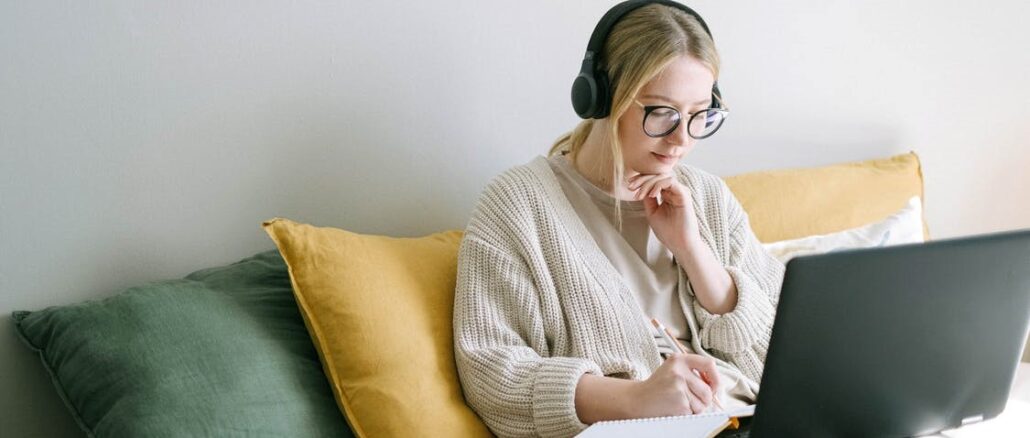

Since the pandemic shifted millions of Americans to remote work, the home office has become a permanent fixture for professionals across the country. But while we’ve adapted to working from home, many of us are still struggling with makeshift setups that weren’t designed for full-time use.
A recent national report revealed that 61% of remote employees now experience worsening musculoskeletal discomfort, with 41% developing new pain in their back, shoulders, or wrists since transitioning to at-home work.
The problem isn’t only physical. Poor audio quality, bad lighting, and awkward camera angles can make virtual meetings exhausting and less productive. That’s where a proper audio-visual setup becomes important.
James Grifo, Owner and CEO of Audio Visual Nation, a company specializing in large-scale live event production, knows firsthand how the right equipment and positioning can transform a workspace. “Most people don’t realize how much their setup affects their daily experience,” says Grifo. “You don’t need a massive budget to make meaningful improvements that reduce strain and help you work better.”
Below, Grifo shares his expert guidance on creating a home office that works for you, not against you.
Optimizing Your Home Office Audio
Clear audio means reducing the mental fatigue that comes from straining to understand others or constantly repeating yourself. Grifo explains that most home office audio problems can be solved with a few strategic adjustments.
- Position Your Microphone Correctly
If you’re using an external microphone, placement matters more than you might think. Position it 6-8 inches from your mouth, slightly off to the side rather than directly in front. This reduces plosive sounds (those harsh “p” and “b” sounds) while maintaining clear voice capture.
“A microphone that’s too close picks up every breath and mouth sound, while one that’s too far forces you to raise your voice, which gets tiring fast,” says Grifo.
- Choose the Right Audio Setup for Your Needs
The headset versus speaker debate depends on your working environment. Headsets offer superior call clarity and privacy, making them ideal if others share your space or if you take back-to-back calls.
However, for occasional meetings, a quality USB speakerphone gives you freedom of movement without the pressure of wearing headphones all day.
- Address Echo and Background Noise
Hard surfaces like bare walls, glass desks, and wooden floors create echo that makes you sound like you’re calling from a bathroom. Simple fixes include adding a fabric wall hanging behind your desk, placing a rug under your workspace, or even keeping a bookshelf nearby. Books are excellent sound absorbers.
“Acoustic treatment doesn’t mean foam panels everywhere,” Grifo notes. “Soft furnishings and everyday items can dramatically improve sound quality without changing your room’s appearance.”
Optimizing Visual and Ergonomic Setup
Your visual setup affects more than just how you look on camera. It directly impacts your physical comfort and long-term health. Grifo emphasizes that small positioning changes can prevent the chronic pain many remote workers now experience.
- Set Your Monitor at the Right Height and Distance
Your monitor should be at arm’s length away, with the top of the screen at or slightly below eye level. This prevents the neck strain that comes from looking down at a laptop screen for hours. If you’re using a laptop as your primary screen, invest in a laptop stand and an external keyboard.
“When your screen is too low, you’re essentially bowing your head for eight hours a day,” explains Grifo. “That’s the fastest path to neck and shoulder pain.”
- Master Your Lighting Setup
Position your main light source in front of you, not behind. A window behind you turns you into a silhouette on video calls, while a window to your side creates unflattering shadows. Ring lights or desk lamps with adjustable color temperature (around 5000K for natural-looking light) work well for most setups.
Avoid overhead lighting alone as it casts shadows under your eyes and makes you look tired.
- Adjust Your Camera Angle
Your camera should be at eye level, which usually means raising your laptop or external webcam. A camera positioned too low creates an unflattering upward angle and makes you appear to be looking down at your colleagues during meetings.
“Eye-level camera positioning feels more natural for everyone on the call,” says Grifo. “It mimics the experience of sitting across from someone in person.”
Recommended AV Equipment for Home Offices
You don’t need to spend thousands to create a functional home office, but knowing where to invest your budget makes a difference. Grifo offers several tips:
- Start With These Affordable Essentials
For under $200, you can significantly upgrade your setup:
- A USB condenser microphone ($50-80) provides better audio than any built-in laptop mic
- An adjustable monitor arm ($30-50) gives you ergonomic flexibility
- A basic ring light or LED desk lamp ($25-40) improves your appearance on video calls
- Consider Premium Options When They Matter
If you spend most of your day in virtual meetings, premium equipment pays for itself in comfort and professionalism:
- Noise-canceling headphones ($200-350) eliminate distractions in busy households
- An external webcam with 1080p resolution ($80-150) delivers sharper video quality
- An ergonomic chair ($300-600) is worth the investment if you’re working from home long-term
- Don’t Overlook Comfort Accessories
Small additions can make your workspace more comfortable. A footrest reduces lower back strain, a document holder prevents neck strain from looking down at papers, and cable management clips keep your desk organized.
“Think about return on investment in terms of your health and productivity, not just dollars,” advises Grifo. “An ergonomic setup that prevents pain and fatigue is worth far more than any equipment cost.”