

Over the past 12 to 18 months, the conversation around AI image editing has quietly shifted. Fewer people are asking what AI can generate from a blank prompt, and more are asking how quickly they can improve an image they already own without bouncing between five different browser tabs. The fragmentation has become the real friction point. One site sharpens, another erases objects, a third swaps backgrounds, and yet another turns the final still into a short video clip. That scattered process is precisely the problem that a newer class of unified editors tries to solve. After spending several weeks testing one of the more talked-about entries in this space, AI Photo Editor, it became clear that the real value is not in any single magic button but in how the platform ties multiple practical editing jobs into one continuous visual workflow.
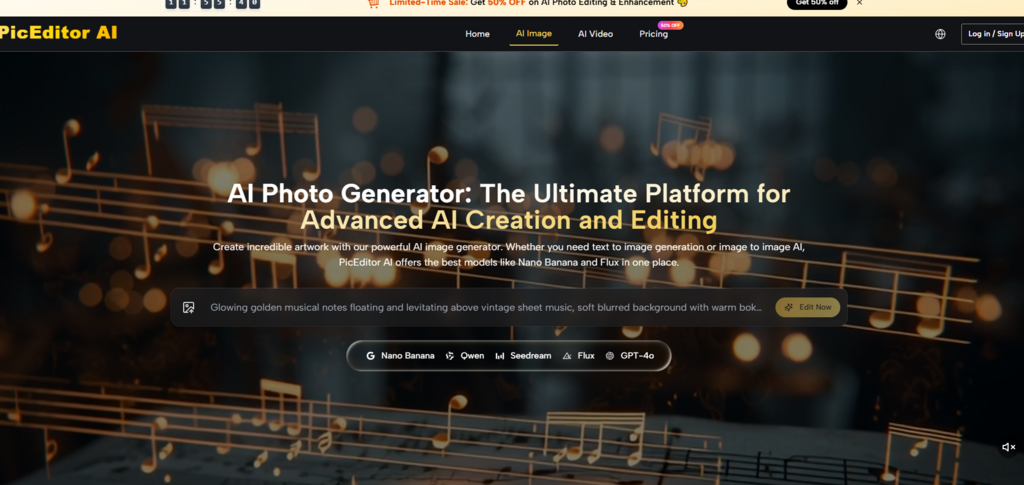
Why Image-First Editing Feels Fundamentally Different from a Blank Canvas
The most noticeable design decision on the platform is that the workflow starts with an uploaded source image, not a blank prompt field or an empty creative canvas. At first glance, that sounds obvious. Every photo editor starts with a photo. But in practice, the framing changes the experience dramatically. The tool consistently treats the user as someone who already has visual material, whether that means a product shot, a portrait, a concept visual, or a campaign asset. The editing loop then becomes a sequence of refinement rather than a creative cold start. This matters because most people do not struggle with imagining what they want. They struggle with translating that intention into technical actions across disconnected tools. By anchoring every session to an existing image, the platform removes the initial friction of deciding where to begin.
From Upload to Refinement: A Short and Repeatable Pattern
From a practical user perspective, the editing process follows a compact and repeatable sequence. You upload an image, choose the type of modification you want, describe what should change or improve, and review what the system returns. There is no layer system to learn and no tool palette to memorize. The interface logic appears designed to reduce the number of technical decisions between intention and output, which means you spend more time judging visual results and less time managing software. In my testing, this stripped-down structure was particularly valuable for quick iterations. Instead of hunting for the right menu or filter, you simply state what you want and evaluate the result. When the outcome is not quite right, you refine the description and try again. That loop feels closer to directing a visual assistant than operating a traditional editor.
The “One Image, Many Deliverables” Advantage
What makes this unified structure feel genuinely different from single-purpose editors is continuity. A single photo can start with enhancement, move into background cleanup, receive a style transfer, and then become an animated clip—all inside the same environment without ever exporting and re-uploading to another tool. In practice, that changes how you think about an image. It stops being a finished asset and starts being a starting point for several deliverables. For anyone producing visual content across formats, that compression of tool-switching is arguably more valuable than any single editing feature. You are no longer managing a collection of separate utilities. You are managing a visual idea as it evolves through multiple stages.
Testing Three Common Editing Scenarios on Real Images
To understand where the platform performs well and where it shows limitations, I ran three practical editing tests using real source images rather than idealized demo cases. Each test focused on a different everyday need: product cleanup, portrait retouching, and conceptual transformation.
Test One: E-Commerce Product Image Enhancement
The first test image showed a consumer product photographed under uneven indoor lighting. The goal was straightforward: make the subject sharper, clean up the background, and produce a result that would feel credible on a product listing page.
The Difficulty of Balancing Clarity and Natural Appearance
Uneven lighting often confuses automated enhancement tools. Too much correction can flatten natural shadows and make the product look artificial. Too little leaves the image looking unpolished and unprofessional. The real challenge was balancing clarity with a natural, believable appearance. Most single-purpose enhancers either over-smooth or over-sharpen, and they rarely handle background separation well in the same pass.
Actual Performance on the Product Shot
Using the enhancement tools followed by background removal, the platform produced a noticeably cleaner version in a single pass. The subject appeared sharper without looking artificially oversharpened. Texture preservation was reasonable; the tool did not smooth every surface into a plastic-like finish. The background removal worked cleanly around the edges, although, like most AI background removers, it performed best where the subject had clear separation from the background. When the subject edges were soft or included fine detail like loose hair or reflective surfaces, the result required a second pass to look fully natural. The fast turnaround from upload to usable result was the clearest advantage. The entire process took roughly the same time as a single edit in a dedicated tool, but without leaving the platform for background work.
Who This Scenario Fits Best
This workflow is most suitable for small sellers, marketplace vendors, and content creators who need to clean up product shots without learning professional retouching software. It handles standard jobs well but may require patience for complex edge cases.
Test Two: Portrait Cleanup and Subtle Retouching
The second test involved a portrait taken in mixed daylight, with mild background distractions and a subject whose facial features could benefit from gentle enhancement without crossing into an artificial, smoothed-over look.
The Fine Line Between Enhancement and Over-Processing
Portrait retouching is notoriously difficult for automated AI tools. Many editors either do almost nothing or go too far, removing skin texture, altering facial structure, or creating an uncanny plastic effect. The goal was subtle: reduce minor imperfections, slightly brighten the eyes, and clean up the background while keeping the person recognizable and natural.
Observed Results on Facial Detail and Background Separation
The platform’s enhancement pass improved overall clarity and slightly lifted shadow areas without introducing visible artifacts. Skin texture remained intact, which was a positive surprise. Background removal worked cleanly around the head and shoulders, though fine hair strands caused some edge softness that required a second correction. The object eraser handled a small distracting sign in the background effectively, filling the removed area with a believable texture that blended with the wall behind it. In my testing, the result was not perfect on the first attempt, but the ability to iterate quickly—re-running the edit with slightly adjusted descriptions or selecting a different underlying engine—made it possible to reach a satisfactory outcome without leaving the browser.
A Realistic Fit for Social and Profile Content
This scenario works well for social media managers, freelancers, and anyone producing profile photos or team headshots. It does not replace a professional retoucher for high-end campaign work, but it delivers consistently usable results for everyday portrait cleanup.
Test Three: Style Transfer and Photo Animation
The third test pushed beyond still images. Starting from a standard outdoor photograph, I applied a painterly style transfer and then used the photo-to-video feature to turn the result into a short animated clip.
Maintaining Subject Identity Under Style Changes
Style transfer is a common AI feature, but many implementations struggle to keep the original subject recognizable. The best results preserve composition and key visual elements while shifting texture, color, and mood. The platform handled this reasonably well. The stylized output retained the original scene’s structure while adopting the requested artistic feel. Consistency was not absolute—some fine details shifted between iterations—but the subject remained clearly identifiable.
From Static Still to Short Motion Clip
The photo-to-video feature moved the final stylized image into gentle motion. The animation was not full video generation but rather a cinematic pan and zoom effect with subtle simulated camera movement. The result felt appropriate for social media short-form content. In my testing, the video output added a noticeable lift in perceived production value for very little extra effort. However, the motion style is not customizable in granular detail, and complex scenes with multiple depth layers showed occasional unnatural movement.
Best Used for Social Content, Not Cinematic Production
This combined workflow is best suited for social media posts, digital ads, and short-form content where motion adds engagement value. It is not a replacement for dedicated animation or video editing tools, but for creators who need to turn a batch of stills into lightweight video assets without learning motion software, it offers a fast and accessible path.
How the Platform Actually Operates: A Four-Step Guide
Based on the public interface and my repeated use, the platform follows a clean, image-first sequence that requires no software installation and no account setup to begin. The process is deliberately short and repeatable.
Step One: Upload Your Starting Image
The Entry Point Is Always the Visual Material
The workflow begins with an uploaded source image, not a text prompt or an empty workspace. You drag and drop or select a file from your device. The platform accepts standard formats and immediately presents the editing toolkit. This design choice frames every session as a refinement task rather than a blank-slate creation exercise. In my testing, starting from an image rather than a prompt field reduced decision fatigue significantly. You already have something to work with. The question is simply what to change.
Step Two: Choose the Type of Modification
Selecting a Job, Not a Tool
Instead of presenting a sprawling toolbar, the interface organizes available actions by what you want to accomplish. Background removal, object erasing, enhancement and upscaling, face swap, generative edit, style transfer, and photo-to-video animation are each presented as distinct but equally accessible options. This job-oriented layout means you do not need to know which technical filter or adjustment layer to use. You only need to describe what you want to happen to your image.
Step Three: Describe the Desired Change
Language as the Primary Editing Interface
Once you select a modification type, you describe the change in plain language. For generative edits, you might specify “remove the trash can on the left and fill with matching pavement.” For style transfer, you might request “oil painting style with soft brushstrokes.” For background replacement, you describe the new setting. The platform then interprets your description and applies the change to your image. In my testing, the quality of results depended heavily on the specificity and clarity of the description. Vague prompts produced inconsistent outcomes. Detailed, concrete descriptions returned noticeably better results.
Step Four: Review, Iterate, or Export
Judging Results and Refining Without Switching Context
After processing, the platform displays the edited image alongside the original for comparison. You can accept the result, export it, or run another edit. The ability to iterate without leaving the environment is where the unified workflow pays off. An image that started with enhancement can immediately receive background removal, then style transfer, then animation, all in the same session. You are not moving files between tools or re-uploading to different sites. You are continuously refining one visual idea until it fits your needs.
Comparing Unified Editing to the Fragmented Alternative
To understand the practical differences, a direct comparison helps clarify where a unified platform offers advantages and where specialized tools still hold ground.
| Aspect | Unified Platform (PicEditor AI) | Fragmented Tool Set |
| Starting Point | Image-first; refine what you have | Multiple entry points; different tools for different tasks |
| Process Clarity | Job-oriented selection; describe desired change | Technical menus; learn each tool separately |
| Creative Control | Language-driven direction; fast iteration | Precise manual adjustment; slower but finer control |
| Applicable Scenarios | Quick product cleanup, portrait retouching, social motion content | Professional retouching, batch processing, complex compositing |
| Experience Stability | Consistent interface across all editing types | Varies by tool; each has its own learning curve and output style |
| Learning Cost | Low; describe instead of learn | Higher; each specialized tool requires its own understanding |
The table is not meant to declare one approach superior in all cases. Specialized tools still win for high-end professional work that demands pixel-level precision. But for everyday editing tasks where speed and continuity matter more than absolute control, the unified approach feels faster and less mentally taxing. The result may vary depending on the complexity of your source image and the clarity of your description, but the reduction in tool-switching is objectively noticeable.
Real Limitations Worth Knowing Before You Start
No AI editing platform is perfect, and honest evaluation requires acknowledging where things fall short. Based on my testing and corroborated by multiple user reviews, several limitations appear consistently.
Prompt quality directly affects output quality. The platform interprets plain language instructions, but vague or ambiguous descriptions produce unpredictable or unsatisfying results. You learn quickly that “make it better” does not work. “Sharpen the subject, soften the background, and increase contrast slightly” works much better. This is not a failure of the tool; it is a characteristic of how current language-driven AI models function. The implication is that effective use requires learning how to write clear, specific editing instructions.
Complex edits may require multiple passes. The platform is fast for straightforward jobs, but intricate modifications—especially those involving fine edge detail, overlapping subjects, or unusual lighting conditions—sometimes need two or three attempts to reach a clean result. The iterative workflow is designed to accommodate this, but it is worth knowing that not every edit succeeds on the first try.
Consistency is not guaranteed across repeated edits. Running the same edit on the same source image may produce slightly different outputs each time. This is a known characteristic of many generative AI models. For most everyday uses, the variation is minor, but for projects requiring pixel-perfect repeatability, this inconsistency can be frustrating.
Fine detail handling remains imperfect. Hair, fur, fabric textures, and reflective surfaces are still challenging for AI background removal and object erasing. The platform handles standard edges well but struggles with fine, complex boundaries. A second pass or manual cleanup may be necessary for professional-grade results in these cases.
The photo-to-video feature offers limited motion control. Animation is achieved through cinematic camera effects rather than full generative video synthesis. You cannot direct specific object motion or control timing in detail. For short-form social content, the output is perfectly adequate. For narrative video work, it is not a replacement for proper motion tools.
Where This Platform Fits into a Real Creative Workflow
After several weeks of testing across product images, portraits, and experimental style work, a clear picture emerged of who benefits most from this unified approach. The platform is not trying to replace high-end professional tools. It is trying to eliminate the friction that comes from juggling five different single-purpose utilities for everyday editing tasks.
The strongest fit appears to be for creators, small business owners, marketers, and freelancers who regularly need to clean up images, remove backgrounds, swap faces, apply style changes, and occasionally turn stills into short video clips—all without learning a heavy design suite or managing multiple subscriptions. The workflow rewards iteration. You try an edit, look at the result, refine your description, and try again. That loop feels productive rather than frustrating because each attempt takes seconds rather than minutes.
The platform also appears suitable for anyone who currently uses a collection of free online tools for background removal, upscaling, and object erasing but is tired of the context switching. Having all those jobs in one place, with a consistent interface and the ability to move an image through multiple stages without re-uploading, is a genuine quality-of-life improvement.
On the other hand, professional retouchers working on high-stakes campaigns, product catalogs requiring absolute batch consistency, or anyone who needs granular control over every pixel will likely still prefer specialized desktop software. The AI approach is fast and accessible, but it trades some precision for speed. That trade-off is acceptable for many everyday scenarios but not for all.
There is also a learning curve that is not about software menus. It is about learning how to describe visual changes in a way that the models understand reliably. That skill develops with use, but newcomers should expect a few frustrating attempts before they find the right phrasing for their specific editing needs.
A Note on Privacy and Local Processing
Based on public statements from the platform, a meaningful privacy consideration is that image processing is handled without uploading files to external servers in the traditional sense. The platform indicates that edits occur locally or through a processing architecture that does not permanently store user images. For anyone concerned about sensitive or proprietary visual material, this local-first approach reduces the risk of data exposure compared to editors that require full uploads to cloud storage. In my testing, I did not observe any indication that images were being retained beyond the active editing session, although users should always review current privacy policies directly on the site for the most up-to-date information.
The Bottom Line: A Practical Tool for Image-First Work
After running real images through real edits across enhancement, removal, style transfer, and animation, the platform proved itself as a capable, fast, and surprisingly cohesive environment for everyday creative work. It does not pretend to be the most powerful editor on the market, and it does not need to be. What it offers is continuity. You start with an image, you describe what you want to change, and you keep refining until the result matches your needs—all without leaving the browser and without managing a collection of disconnected utilities.
For anyone tired of bouncing between five different tools to complete one image, the unified workflow is worth experiencing directly. You can test the core editing loop yourself by visiting AI Image Editor and uploading your own source material. The real test is not in reading about it. It is in seeing whether the platform reduces your own editing friction. In my experience, for the majority of everyday visual tasks, it does.